
Lesson guide
Learning objectives
- Explain the main purpose of Window sizes and scrolling in JavaScript.
- Identify the syntax, APIs, or concepts introduced in this lesson.
- Use the examples to predict how JavaScript will behave before you run similar code.
- Connect this topic to nearby lessons in Document.
Real-world context
This lesson matters when you need to recognize where Window sizes and scrolling fits into real JavaScript programs. How do we find the width and height of the browser window?
Key ideas
- Window sizes and scrolling is part of the Document chapter, so it builds on the surrounding concepts rather than standing alone.
- Read each code example in two passes: first for the result, then for the rule that explains the result.
- When a section compares similar features, focus on the condition that makes you choose one feature over another.
Key terms
- Window sizes and scrolling
- Window
- sizes
- scrolling
- Document
How do we find the width and height of the browser window? How do we get the full width and height of the document, including the scrolled out part? How do we scroll the page using JavaScript?
For this type of information, we can use the root document element document.documentElement, that corresponds to the <html> tag. But there are additional methods and peculiarities to consider.
Width/height of the window
To get window width and height, we can use the clientWidth/clientHeight of document.documentElement:
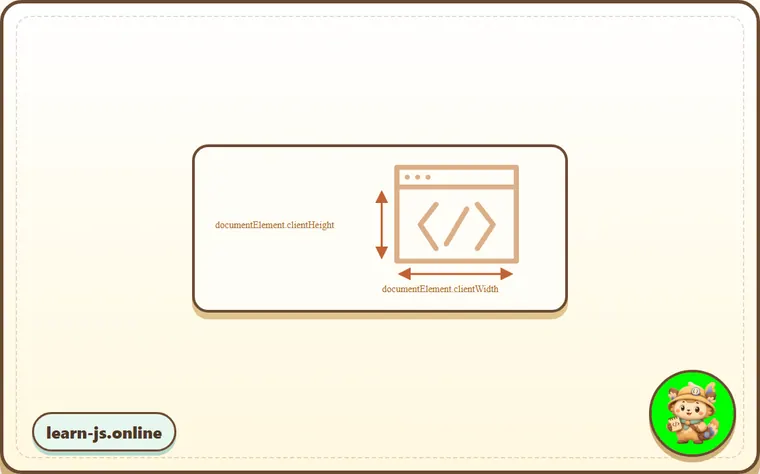
For instance, this button shows the height of your window:
alert(document.documentElement.clientHeight)
Not window.innerWidth/innerHeight
Browsers also support properties like window.innerWidth/innerHeight. They look like what we want, so why not to use them instead?
If there exists a scrollbar, and it occupies some space, clientWidth/clientHeight provide the width/height without it (subtract it). In other words, they return the width/height of the visible part of the document, available for the content.
window.innerWidth/innerHeight includes the scrollbar.
If there’s a scrollbar, and it occupies some space, then these two lines show different values:
alert( window.innerWidth );
alert( document.documentElement.clientWidth );
In most cases, we need the available window width in order to draw or position something within scrollbars (if there are any), so we should use documentElement.clientHeight/clientWidth.
DOCTYPE is important
Please note: top-level geometry properties may work a little bit differently when there’s no <!DOCTYPE HTML> in HTML. Odd things are possible.
In modern HTML we should always write DOCTYPE.
Width/height of the document
Theoretically, as the root document element is document.documentElement, and it encloses all the content, we could measure the document’s full size as document.documentElement.scrollWidth/scrollHeight.
But on that element, for the whole page, these properties do not work as intended. In Chrome/Safari/Opera, if there’s no scroll, then documentElement.scrollHeight may be even less than documentElement.clientHeight! Weird, right?
To reliably obtain the full document height, we should take the maximum of these properties:
let scrollHeight = Math.max(
  document.body.scrollHeight, document.documentElement.scrollHeight,
  document.body.offsetHeight, document.documentElement.offsetHeight,
  document.body.clientHeight, document.documentElement.clientHeight
);

alert('Full document height, with scrolled out part: ' + scrollHeight);
Why so? Better don’t ask. These inconsistencies come from ancient times, not a “smart” logic.
Get the current scroll
DOM elements have their current scroll state in their scrollLeft/scrollTop properties.
For document scroll, document.documentElement.scrollLeft/scrollTop works in most browsers, except older WebKit-based ones, like Safari (bug 5991), where we should use document.body instead of document.documentElement.
Luckily, we don’t have to remember these peculiarities at all, because the scroll is available in the special properties, window.pageXOffset/pageYOffset:
alert('Current scroll from the top: ' + window.pageYOffset);
alert('Current scroll from the left: ' + window.pageXOffset);
These properties are read-only.
Also available as window properties scrollX and scrollY
For historical reasons, both properties exist, but they are the same:
window.pageXOffsetis an alias ofwindow.scrollX.window.pageYOffsetis an alias ofwindow.scrollY.
Scrolling: scrollTo, scrollBy, scrollIntoView
Important:
To scroll the page with JavaScript, its DOM must be fully built.
For instance, if we try to scroll the page with a script in <head>, it won’t work.
Regular elements can be scrolled by changing scrollTop/scrollLeft.
We can do the same for the page using document.documentElement.scrollTop/scrollLeft (except Safari, where document.body.scrollTop/Left should be used instead).
Alternatively, there’s a simpler, universal solution: special methods window.scrollBy(x,y) and window.scrollTo(pageX,pageY).
- The method
scrollBy(x,y)scrolls the page relative to its current position. For instance,scrollBy(0,10)scrolls the page10pxdown.
The button below demonstrates this:
window.scrollBy(0,10)
- The method
scrollTo(pageX,pageY)scrolls the page to absolute coordinates, so that the top-left corner of the visible part has coordinates(pageX, pageY)relative to the document’s top-left corner. It’s like settingscrollLeft/scrollTop.
To scroll to the very beginning, we can use scrollTo(0,0).
window.scrollTo(0,0)
These methods work for all browsers the same way.
scrollIntoView
For completeness, let’s cover one more method: elem.scrollIntoView(top).
The call to elem.scrollIntoView(top) scrolls the page to make elem visible. It has one argument:
- If
top=true(that’s the default), then the page will be scrolled to makeelemappear on the top of the window. The upper edge of the element will be aligned with the window top. - If
top=false, then the page scrolls to makeelemappear at the bottom. The bottom edge of the element will be aligned with the window bottom.
The button below scrolls the page to position itself at the window top:
this.scrollIntoView()
And this button scrolls the page to position itself at the bottom:
this.scrollIntoView(false)
Forbid the scrolling
Sometimes we need to make the document “unscrollable”. For instance, when we need to cover the page with a large message requiring immediate attention, and we want the visitor to interact with that message, not with the document.
To make the document unscrollable, it’s enough to set document.body.style.overflow = "hidden". The page will “freeze” at its current scroll position.
Try it:
document.body.style.overflow = ‘hidden’
document.body.style.overflow = ‘’
The first button freezes the scroll, while the second one releases it.
We can use the same technique to freeze the scroll for other elements, not just for document.body.
The drawback of the method is that the scrollbar disappears. If it occupied some space, then that space is now free and the content “jumps” to fill it.
That looks a bit odd, but can be worked around if we compare clientWidth before and after the freeze. If it increased (the scrollbar disappeared), then add padding to document.body in place of the scrollbar to keep the content width the same.
Common mistakes
- Skipping the small examples and then missing the exact rule that Window sizes and scrolling depends on.
- Copying code without changing one value at a time to see which part controls the result.
- Treating similar-looking syntax or APIs as interchangeable before checking their edge cases.
Summary
Geometry:
-
Width/height of the visible part of the document (content area width/height):
document.documentElement.clientWidth/clientHeight -
Width/height of the whole document, with the scrolled out part:
let scrollHeight = Math.max(
  document.body.scrollHeight, document.documentElement.scrollHeight,
  document.body.offsetHeight, document.documentElement.offsetHeight,
  document.body.clientHeight, document.documentElement.clientHeight
);
Scrolling:
-
Read the current scroll:
window.pageYOffset/pageXOffset. -
Change the current scroll:
window.scrollTo(pageX,pageY)– absolute coordinates,window.scrollBy(x,y)– scroll relative the current place,elem.scrollIntoView(top)– scroll to makeelemvisible (align with the top/bottom of the window).
Predict
Before running this window-scroll check, predict the six output lines. It compares innerWidth with documentElement.clientWidth, computes full document height with Math.max, reads page scroll, and distinguishes scrollBy from scrollTo.
Reveal explanation
The output is 1000:984, 2000, 30:120, 30:130, 0:0, and hidden. innerWidth includes the scrollbar area, while documentElement.clientWidth models the usable content width without it. The full document height is the maximum of the body and root geometry values because browsers have historical inconsistencies there. pageXOffset/pageYOffset give the current scroll. scrollBy(0, 10) moves relative to the current position, while scrollTo(0, 0) jumps to absolute document coordinates. Setting body.style.overflow to hidden models freezing document scroll.
Try it
Change scrollBy(0, 10) to scrollBy(5, -20), then predict the fourth output line.
Practice
- Rewrite one example from this lesson without looking at the original, then run it and compare the result.
- Change one input, operator, method call, or option in a code sample and predict what will happen before running it.
- Explain Window sizes and scrolling in your own words as if you were reviewing it with another learner.
Keep learning
Continue with Coordinates when you are ready for the next lesson.